
Sort
Sorting only changes how the rows are shown. It never changes the file.
Sort by one column
Section titled “Sort by one column”Hold a column’s name. The rows sort A→Z (or smallest first) and an ↑ appears in the header. Hold again for Z→A (↓), and a third time to go back to the file’s order.
Holding a different column sorts by that column instead.
Sort by several columns
Section titled “Sort by several columns”Sort by Continent, then within each continent by Rating:
- Tap Filter in the bottom bar and switch to Sort.
- Tap the first column.
- Tap Then by… and pick the next one. You can use up to three.
- Tap Ascending / Descending to flip a column, drag the handle to change which column counts first, and ✕ to remove one.
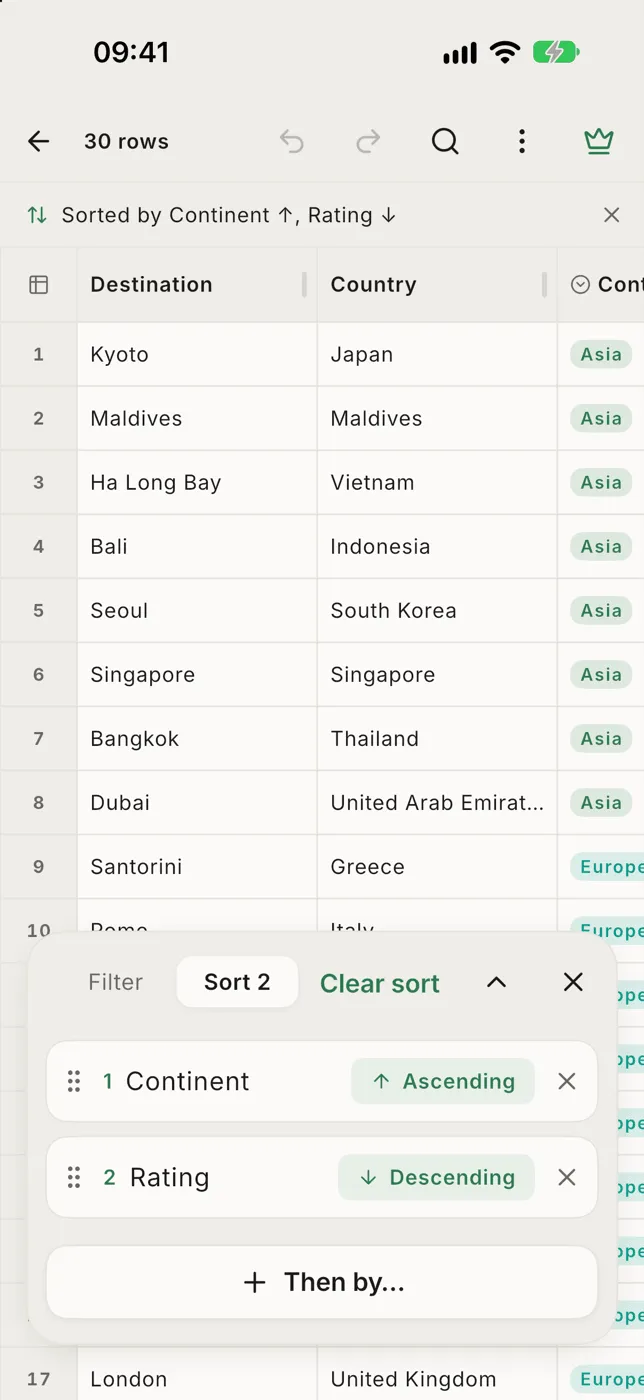
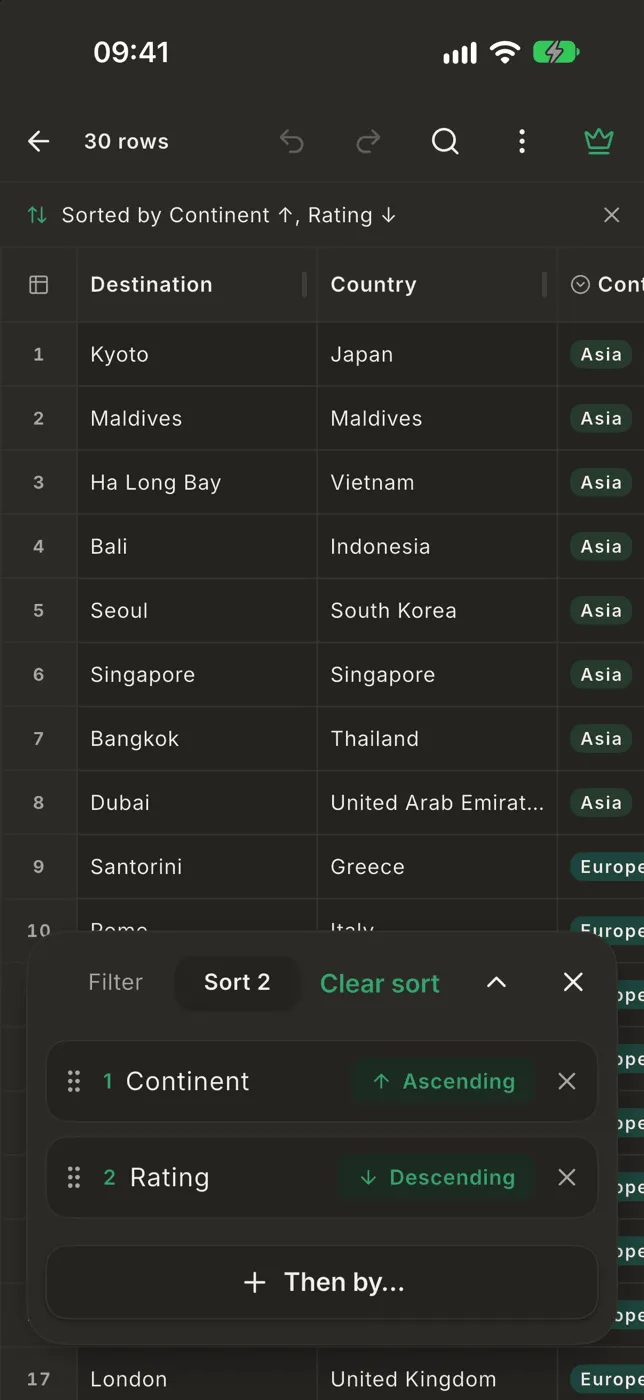
Changes show in the table straight away; there’s nothing to apply.
You can also do it from the Layout panel: select a column and choose Ascending, then select another and choose Then by this.
When more than one column is sorted, each header shows its place: ↑1, ↓2.
Numbers and dates sort by value when the column has a type; checkboxes sort ticked first.
See and clear the sort
Section titled “See and clear the sort”A line under the top bar says what the sort is, for example Sorted by Continent ↑, Rating ↓. Tap it to change the sort, or tap ✕ to go back to the file’s order. Clear sort in the panel and ⋯ → Reset filters & sort do the same, with Undo.
What keeps the sort
Section titled “What keeps the sort”- Filtering keeps it.
- Running your own SQL, or applying an answer from the assistant, clears it.
- Renaming, moving or retyping columns keeps it.
- Leaving the file clears it.