
Layout
Tap Layout in the bottom bar. The panel opens over the bottom of the table and every change shows at once. What it shows depends on the selection.
With a column selected
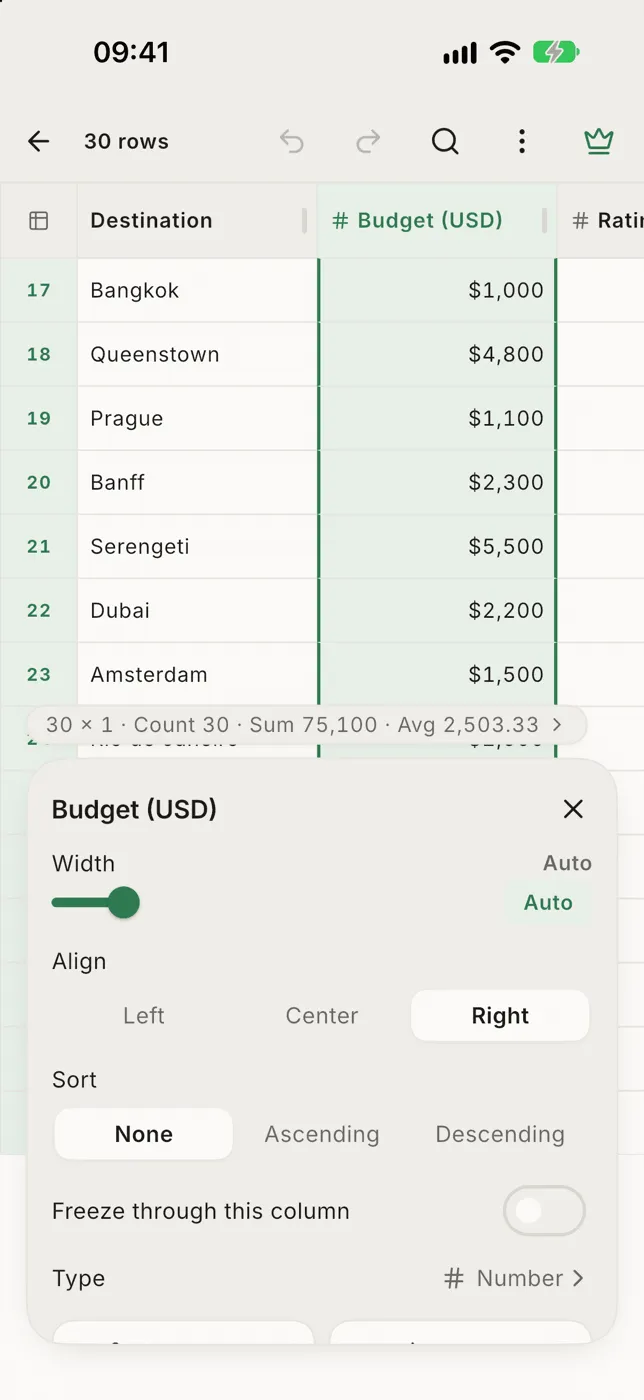
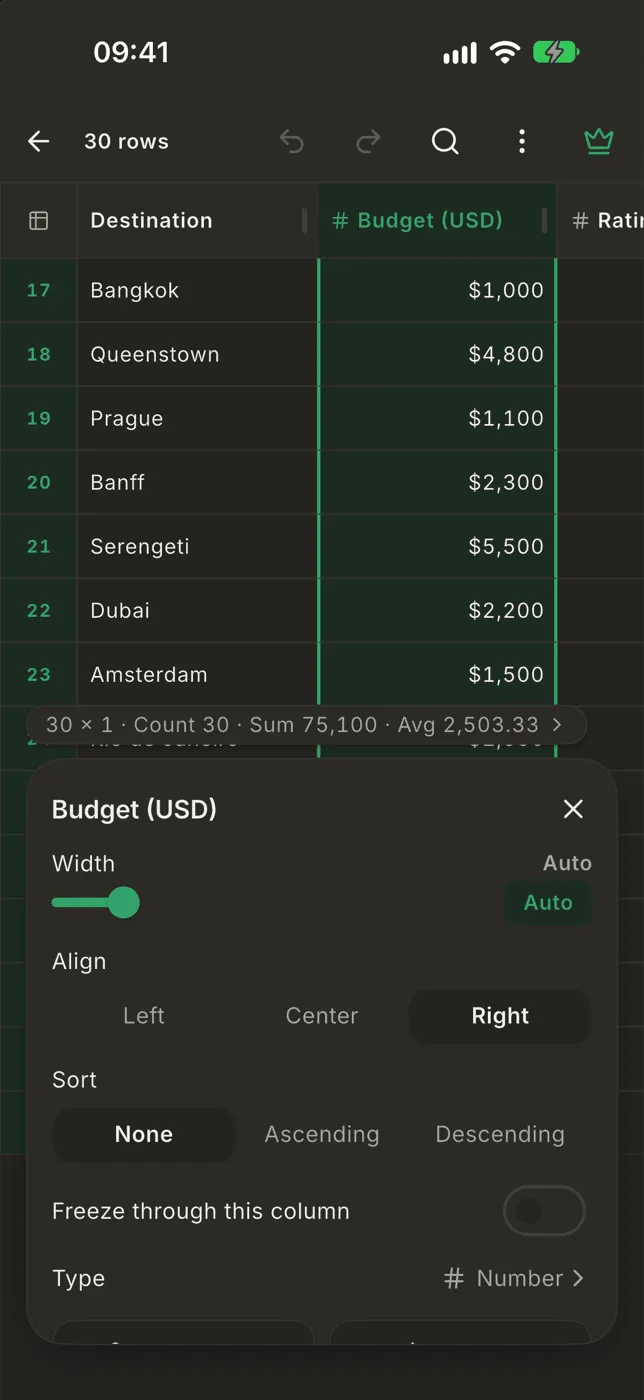
Section titled “With a column selected”Tap a column’s name first, then Layout. Tap another column’s name to switch the panel to that column.
- Width: drag the slider. Auto puts it back to the default.
- Align: Left, Center or Right.
- Sort: None, Ascending or Descending, then Then by this to add it to a multi-column sort.
- Freeze through this column: keeps this column and those left of it in place while you scroll sideways.
- Type: the column type.
- Rename column and Hide.
Select several columns to change them together.
With nothing selected
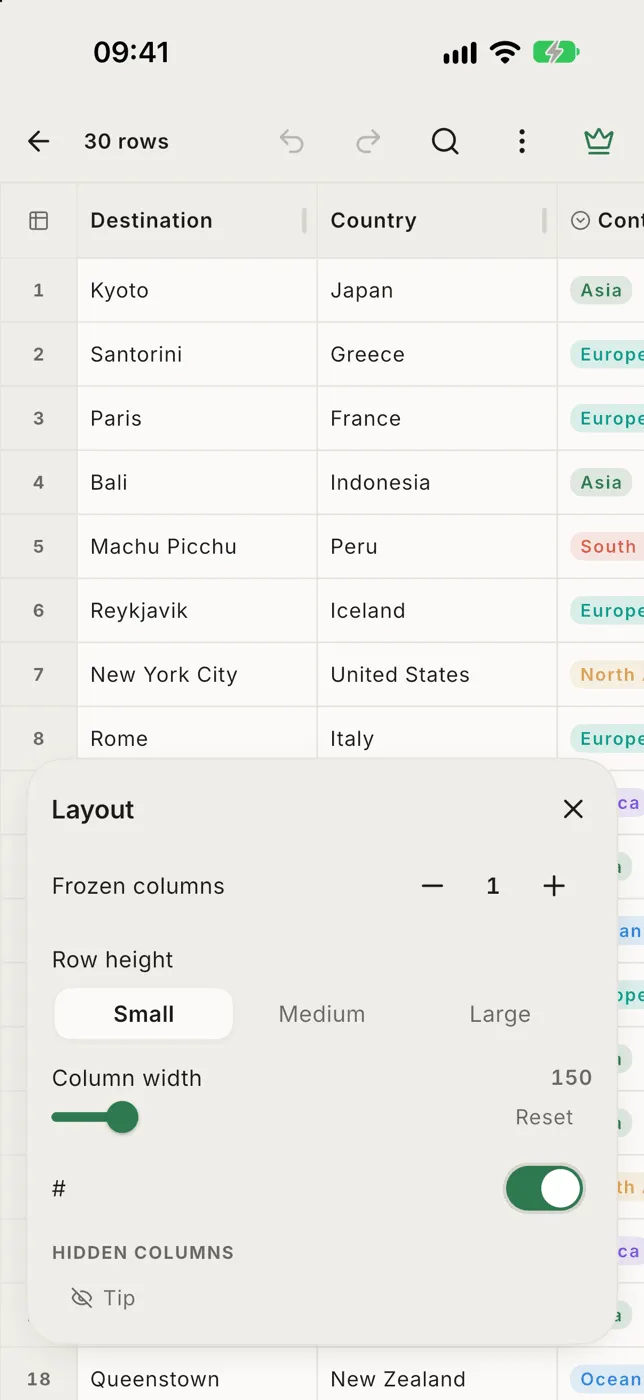
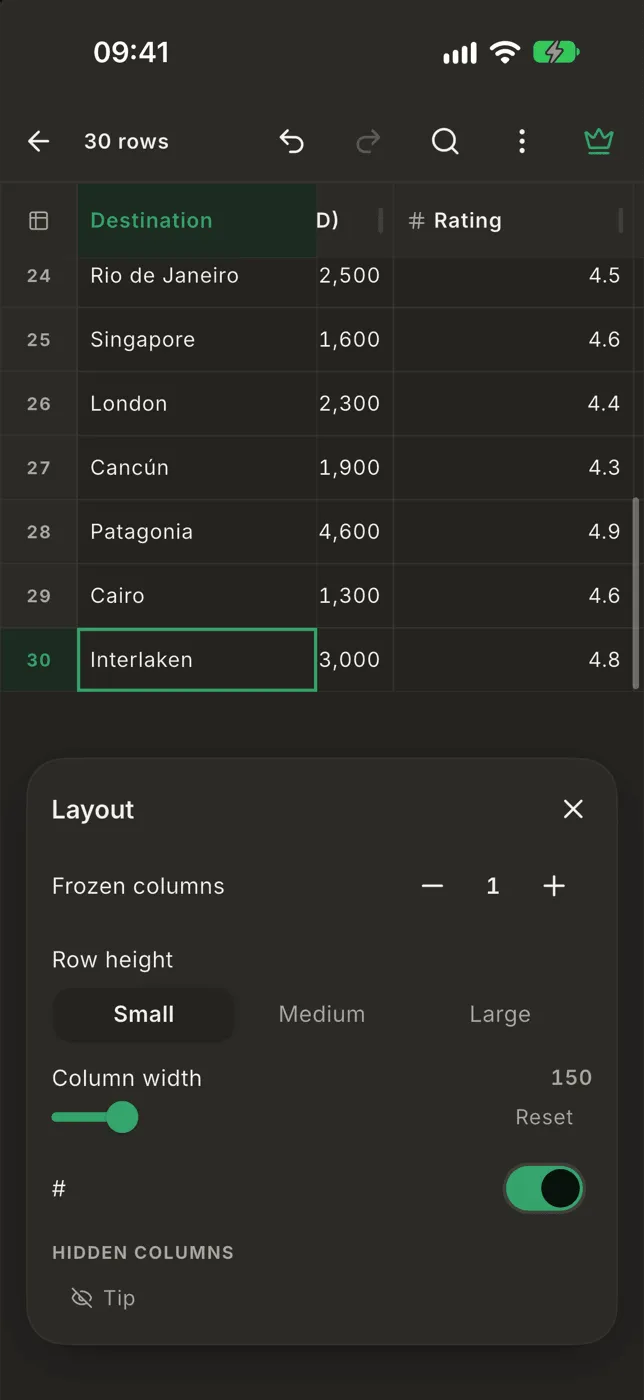
Section titled “With nothing selected”- Frozen columns: how many columns stay put on the left.
- Row height: Small, Medium or Large.
- Column width: the default width for every column. Reset puts it back.
- #: shows or hides the row numbers.
- Hidden columns: tap one to show it again, or Show all.