
Columns
Select a column
Section titled “Select a column”Tap a column name. Tap more names, or drag the selection handle, to select several.
Insert and delete
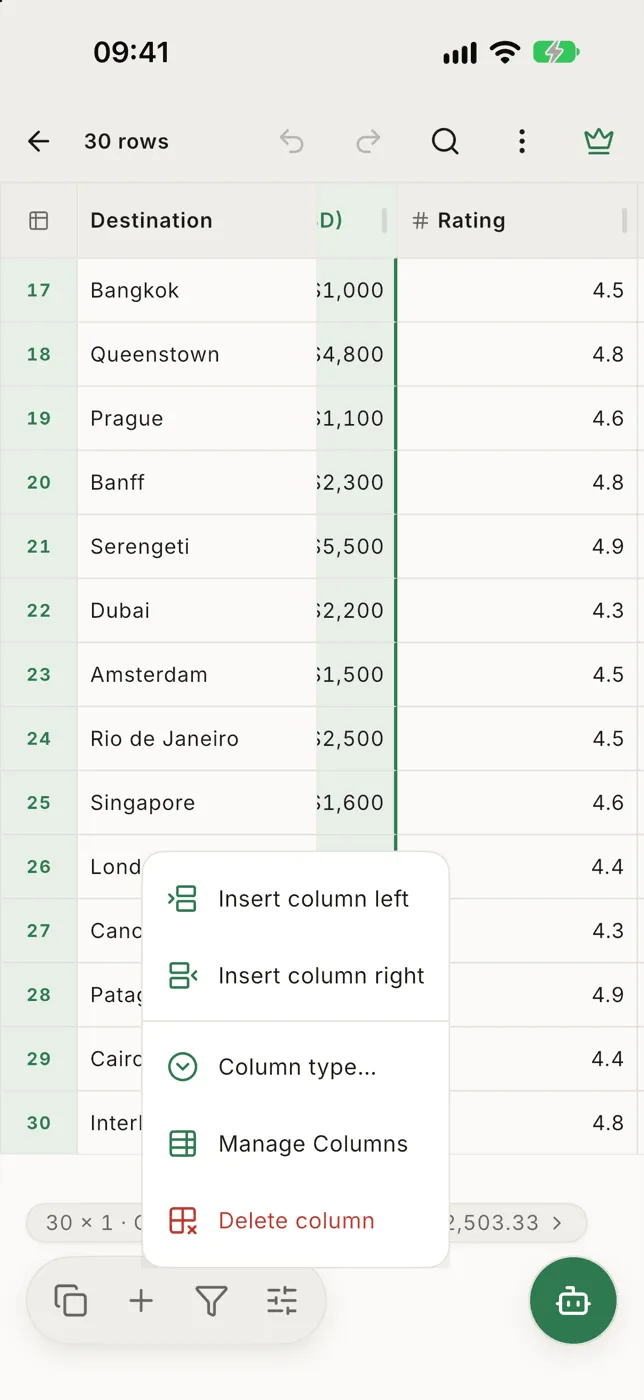
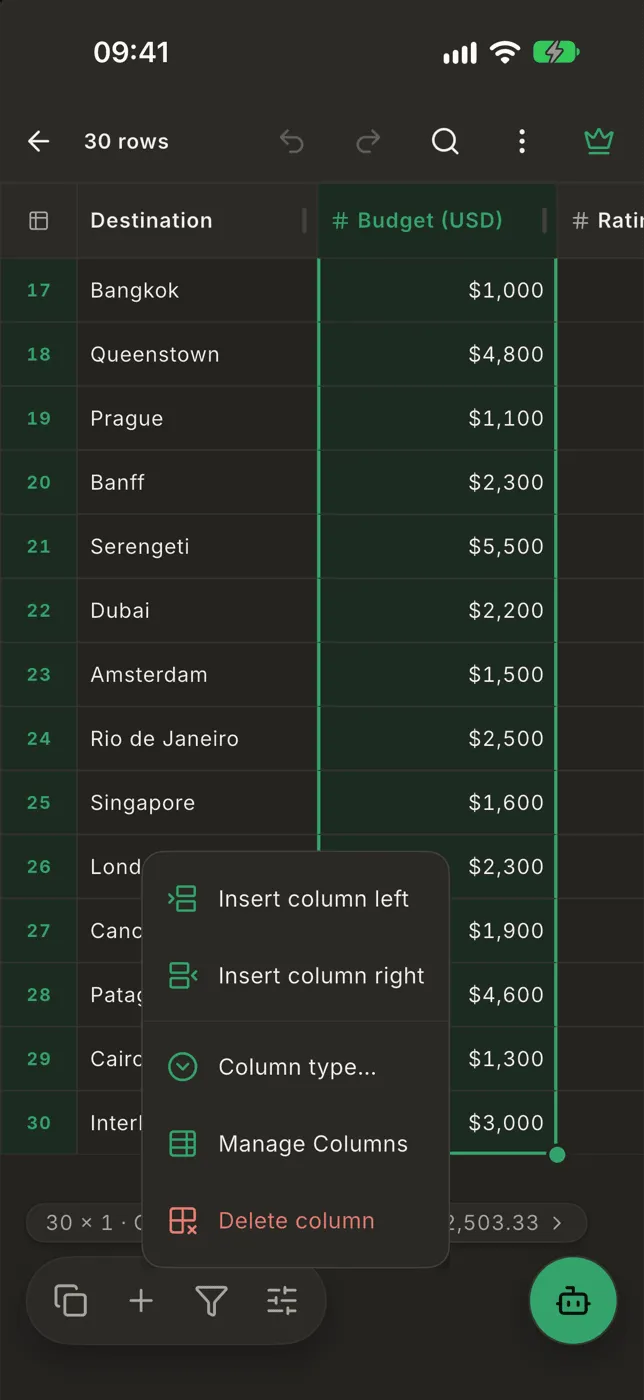
Section titled “Insert and delete”With a column selected, open the Edit menu (+ in the bottom bar):
- Insert column left / Insert column right
- Delete column: asks first, and Undo brings it back with its values.
Rename
Section titled “Rename”- Tap a selected column’s name again to rename it.
- Or open Layout with the column selected and tap its name.
Manage columns
Section titled “Manage columns”+ → Manage columns shows every column in one list, for several changes at once:
- Drag the handle to reorder.
- Tap the type chip to change the column type. It shows how much of the column fits each type, for example Number 98%.
- Tap the name to rename. A renamed column shows its old name crossed out underneath; tap it, or ↺, to go back.
- The eye hides or shows the column.
- Delete removes it.
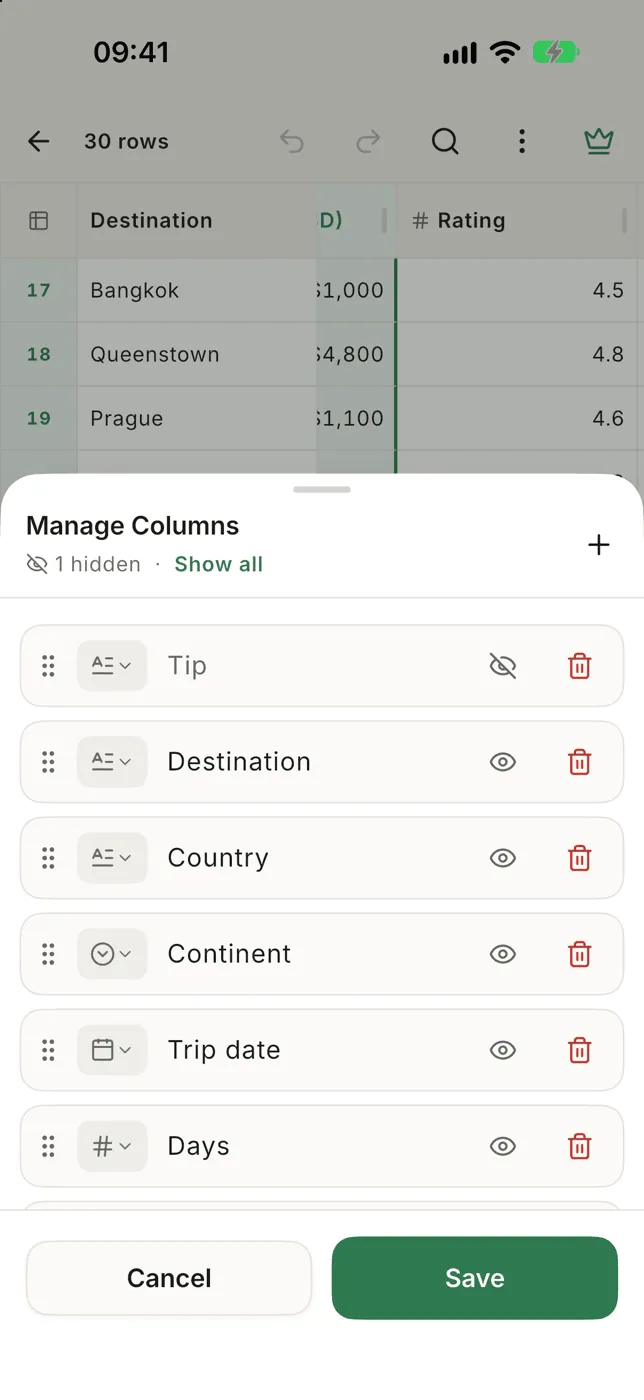
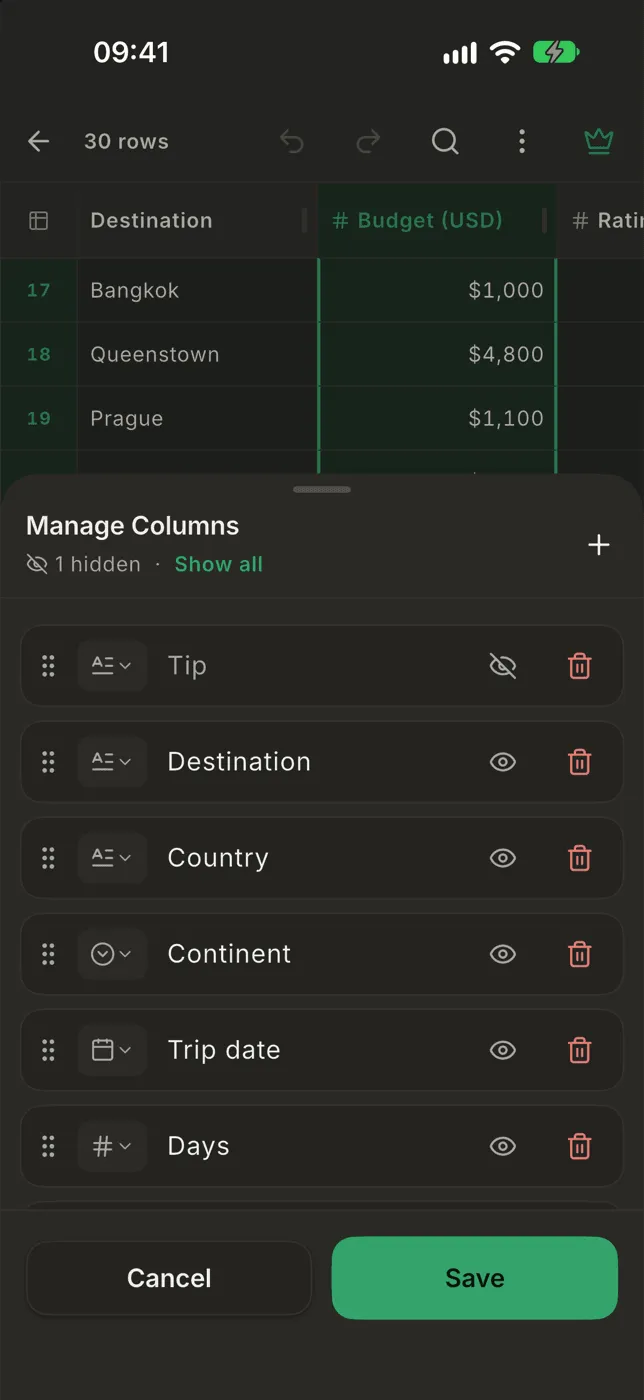
Tap Save to apply everything. One Undo takes the whole save back.
Width, alignment and freezing
Section titled “Width, alignment and freezing”Those live in the Layout panel.