
Open a file
Smart CSV opens .csv, .tsv and plain text files with comma, semicolon,
tab, pipe, colon or space separated values. It works out the separator, the
quote character and the text encoding on its own.
Import a file
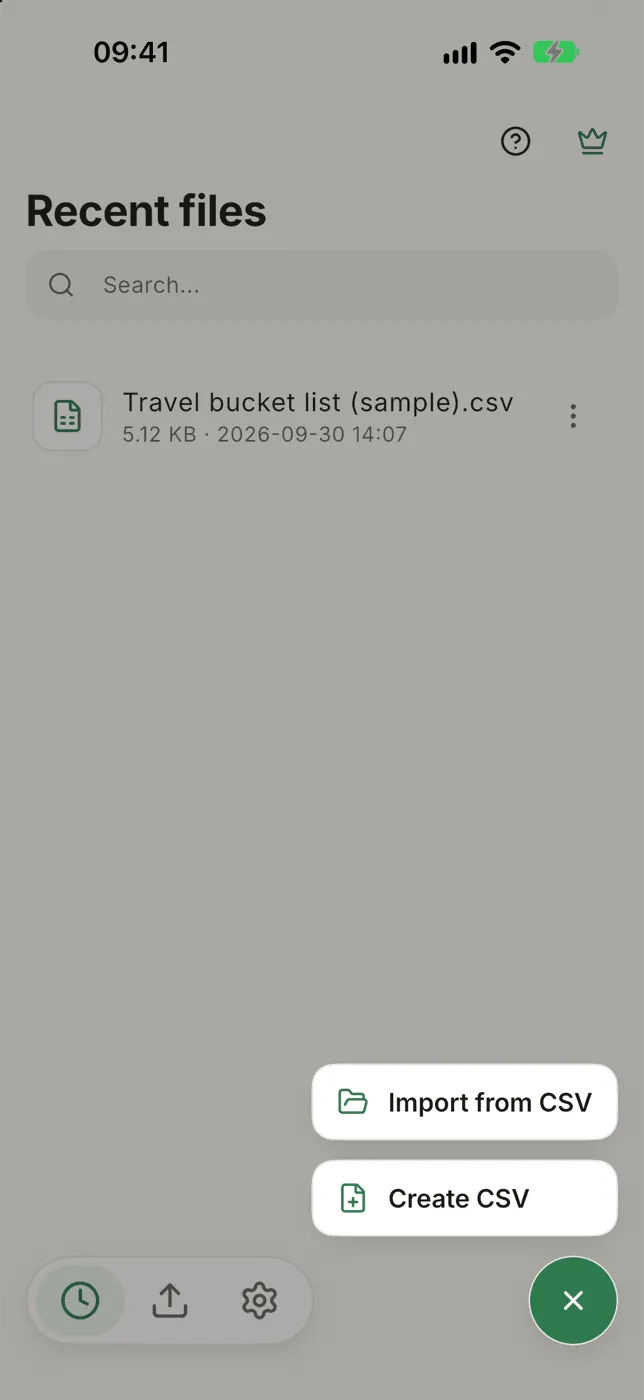
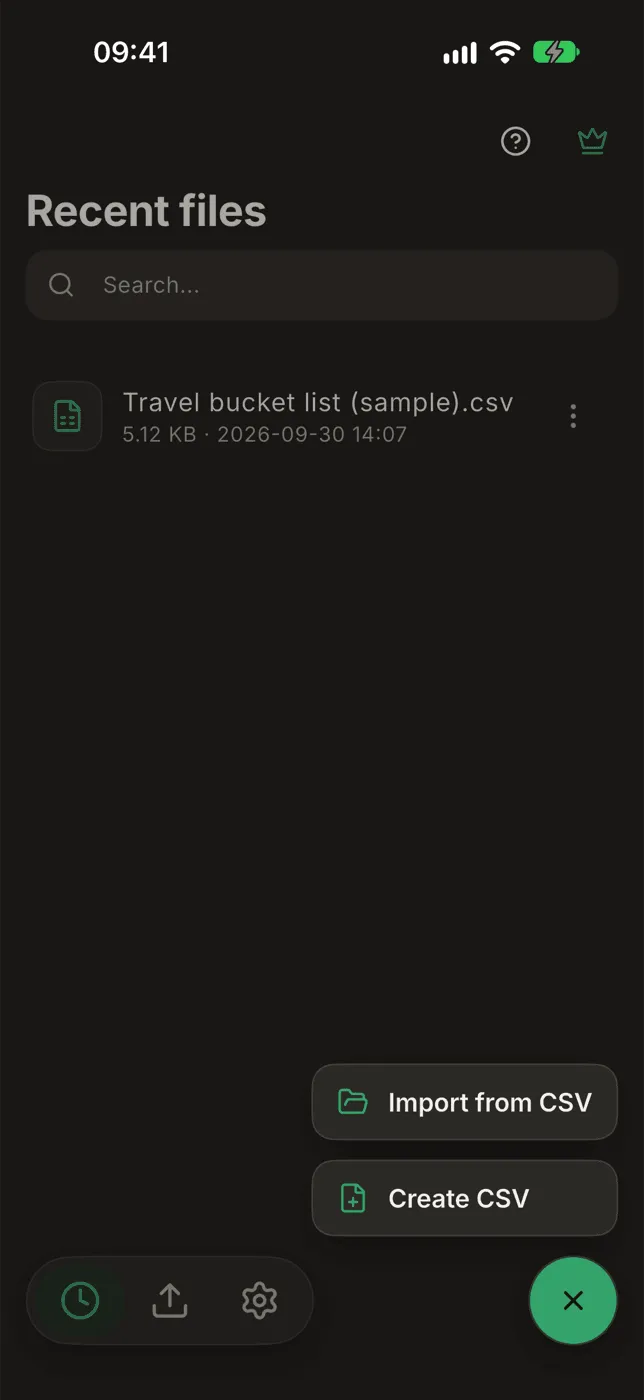
Section titled “Import a file”- On the home screen, tap + and choose Import from CSV.
- Pick the file from Files, iCloud Drive, Google Drive, or any place the picker shows.
- The file opens in the table. Big files show a progress bar while they come in; Cancel stops the import and leaves everything as it was.
You can also start from the other side: in the Files app, or any app that can share a file, choose Open in Smart CSV or share the file to Smart CSV.
Every file you open is listed on the home screen, so next time it opens instantly.
Create CSV (under the same +) makes a new, empty file that is ready to type in.
Check that it looks right
Section titled “Check that it looks right”The first time you open a file it is read-only, with a card at the bottom asking Does this look right? The card says what Smart CSV found, for example Separator Semicolon · Header row · 12 columns · 3,400 rows.
Scroll the table and check that the columns are split where you expect.
- Looks right unlocks editing. The file is always read this way from now on, and is written back with the same separator and encoding.
- Adjust opens the import options (below) so you can change how it is read.
If some rows don’t match the rest, the card says so, for example 12 rows have a different number of columns, first at row 340. That usually means the separator or the quote character is wrong.
You can search, sort and filter while the card is up. Editing waits until you answer.
Import options
Section titled “Import options”To change how a file is read later, open it and tap ⋯ → Import options.
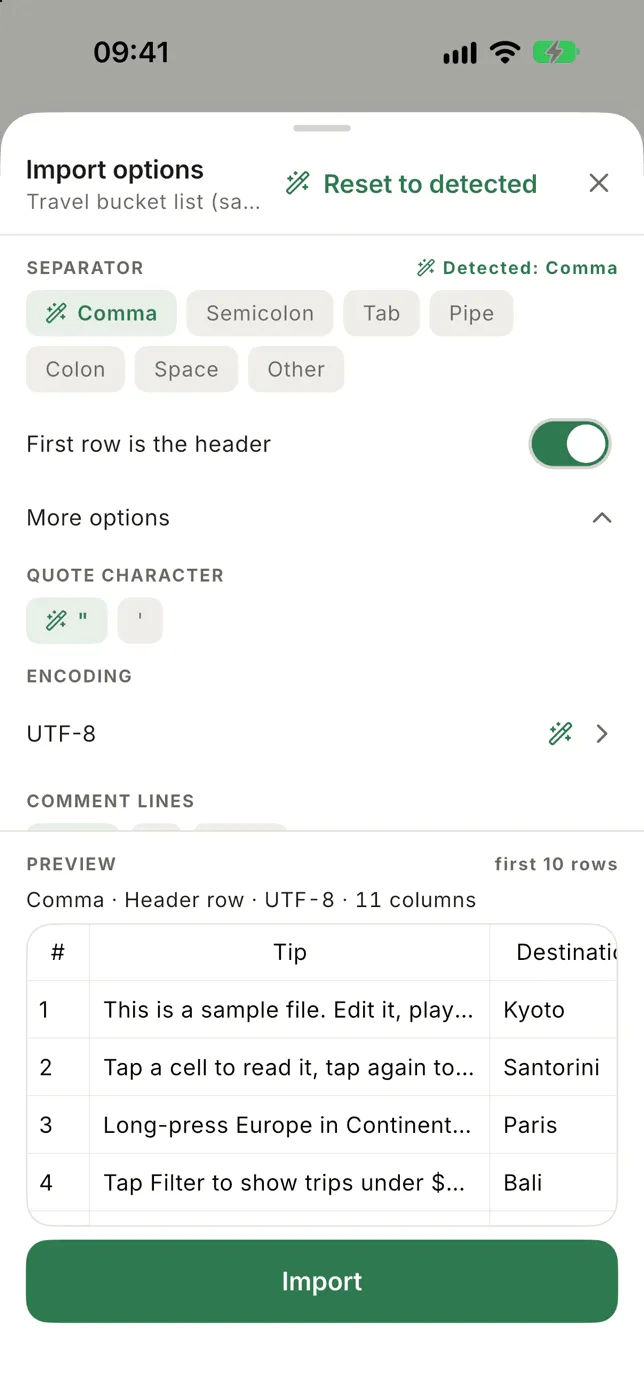
The top of the sheet has the settings. Below them, a live Preview shows the first rows as they would be read.
- Separator: Comma, Semicolon, Tab, Pipe, Colon or Space. The one Smart
CSV detected has a small wand icon. Other lets you type your own, for
example
~, or\tfor a tab. - First row is the header: turn it off when the file has no header line. See Files without a header.
- More options
- Quote character:
"or'. - Encoding: UTF-8, UTF-16, and the encodings older spreadsheet apps save in: Western European (Windows-1252, ISO-8859-1), Central European (Windows-1250), Cyrillic (Windows-1251), Vietnamese (Windows-1258), Japanese (Shift_JIS, EUC-JP), Chinese (GB18030/GBK) and Korean (EUC-KR). Pick another if letters in the preview look garbled.
- Comment lines: lines starting with this character (
#by default) are skipped. Choose None to keep every line.
- Quote character:
- Reset to detected puts everything back.
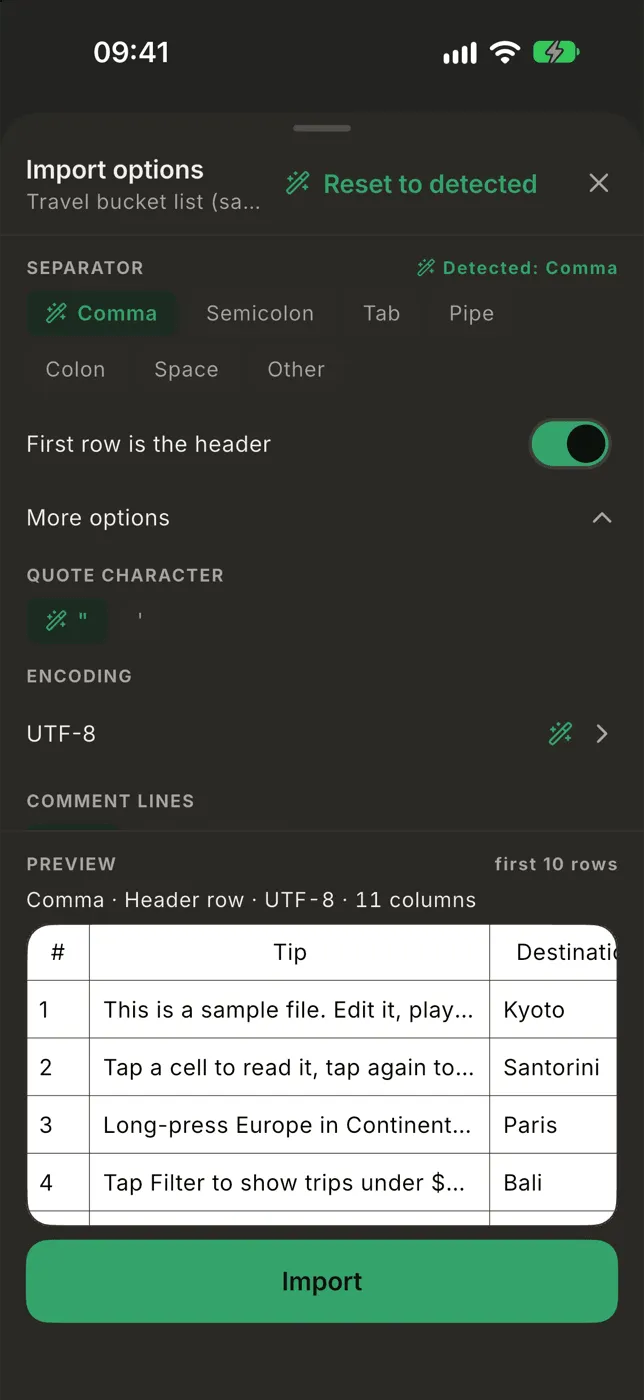
The preview also spots likely mistakes and offers the fix as a button, for example The rows split evenly with Semicolon → Use Semicolon.
When the original file changes
Section titled “When the original file changes”Smart CSV remembers where each file came from.
- Picking the same file again opens the copy you already have. If the original changed and you haven’t edited your copy, the new version is loaded.
- If both changed, you choose: Open my version, Load the new version (your edits in Smart CSV are lost), or Keep both (the new version comes in as a second file).
- The home list shows Newer version in iCloud Drive (or wherever the file lives) under a file whose original changed. Pull down on the list to check again.
- ⋯ on a file (or in the viewer) → Reload from original copies it in again. If the original was moved or deleted, Unlink from original stops Smart CSV looking for it.
A file sent from Mail, a chat app or AirDrop has no original to go back to, so none of this applies to it.
Good to know
Section titled “Good to know”- A first line such as
sep=;sets the separator and is not shown as a row. - Spaces at the start and end of each cell are removed.
- Blank lines show as empty rows and are written back as blank lines.
- A cell can hold up to 100,000 characters. If the import finds a longer one, it is almost always a quote that never closes; the import options open and say on which line.