
Filter
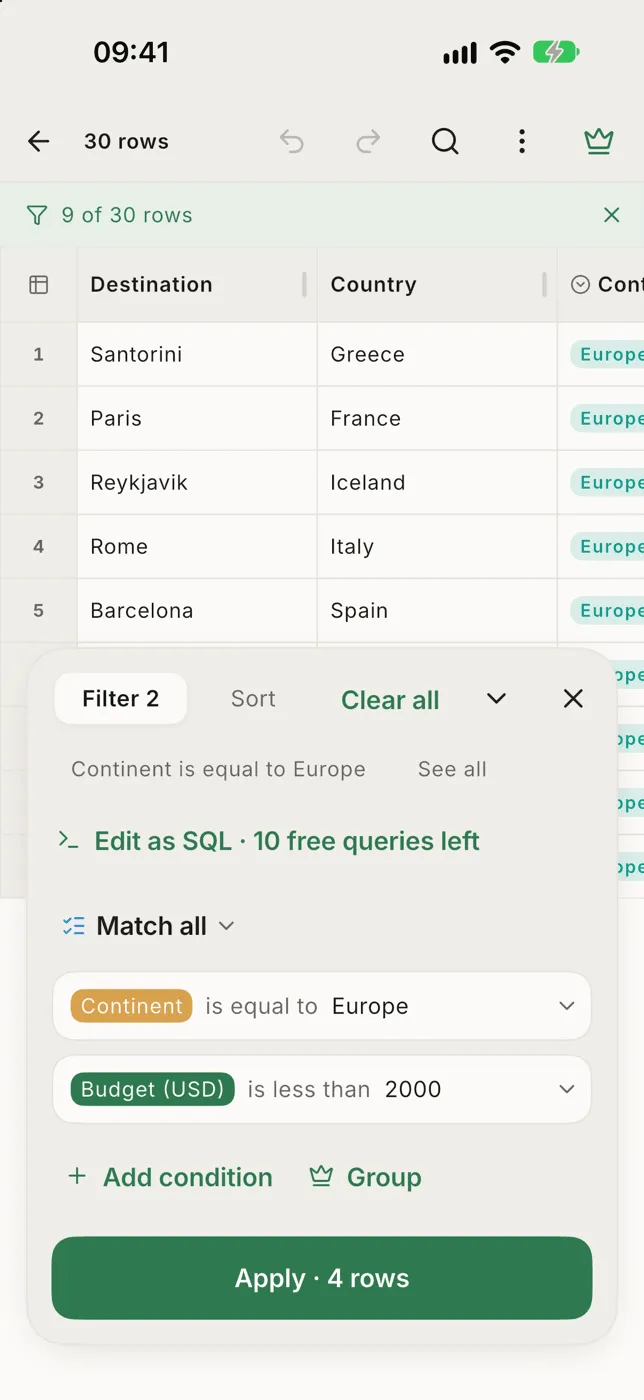
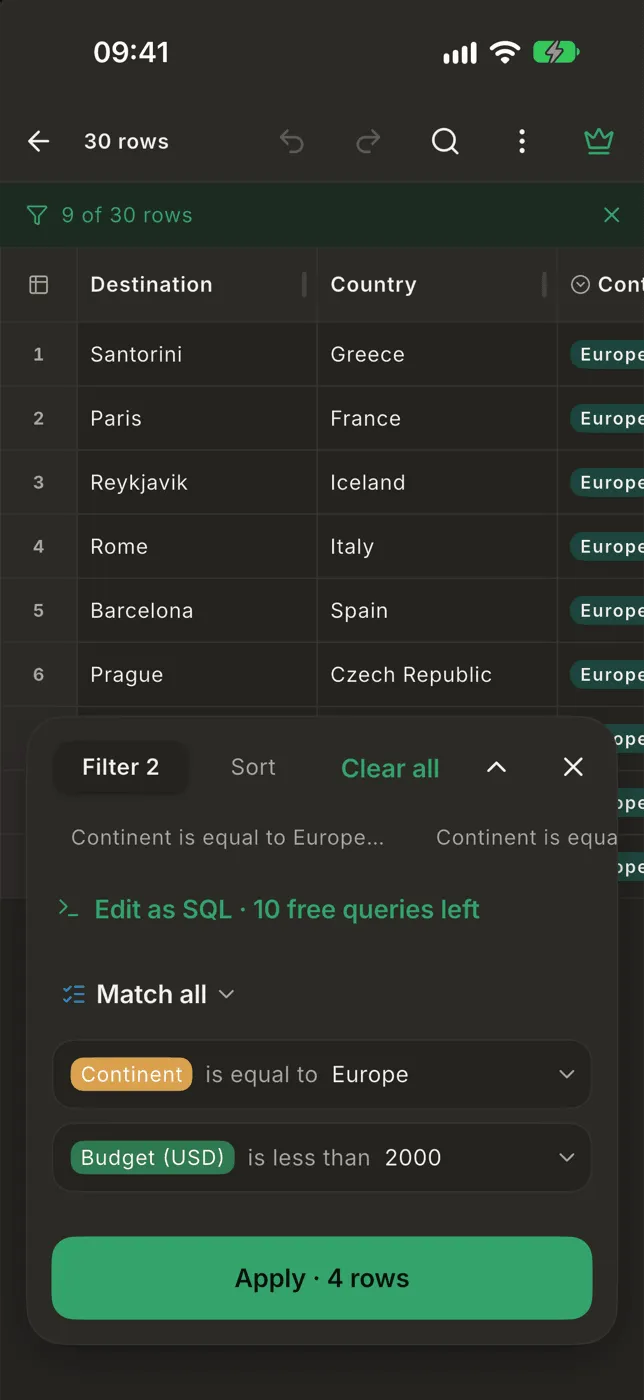
The filter panel opens over the table, so you can see the rows while you build it. The button that applies it says how many rows it would leave: Apply · 1,204 rows.
Quick filter from a cell
Section titled “Quick filter from a cell”Hold a cell and choose Filter by this value. Only the rows with exactly that value in the column stay.
Build a filter
Section titled “Build a filter”- Tap Filter in the bottom bar. The panel opens on its Filter side.
- Tap Add condition and pick a column. Type part of its name to search.
- Choose an operator, such as is equal to, contains, is greater than or is empty, and type the value.
- Add more conditions if you need them, then tap Apply.
Each condition folds into one line, like City is in Hanoi, HCMC +3, until
you tap it. Delete is inside the open condition; a message offers
Undo.
Conditions still missing a value are marked needs a value and ignored by the count. If nothing matches, the button greys out and says so, instead of applying an empty table.
The operators follow the column type: number and date columns compare by value, checkboxes have is checked, and select columns have is in.
Groups
Section titled “Groups”Group (Pro) combines conditions with Match all, Match any or Match none. Tap the heading to switch. The ⋯ beside a group deletes the whole group.
Recent and past filters
Section titled “Recent and past filters”Your recent filters are the chips along the top of the panel. Tap one to load it; hold it to forget it. See all opens the full history. A loaded filter isn’t applied until you tap Apply.
While a filter is on
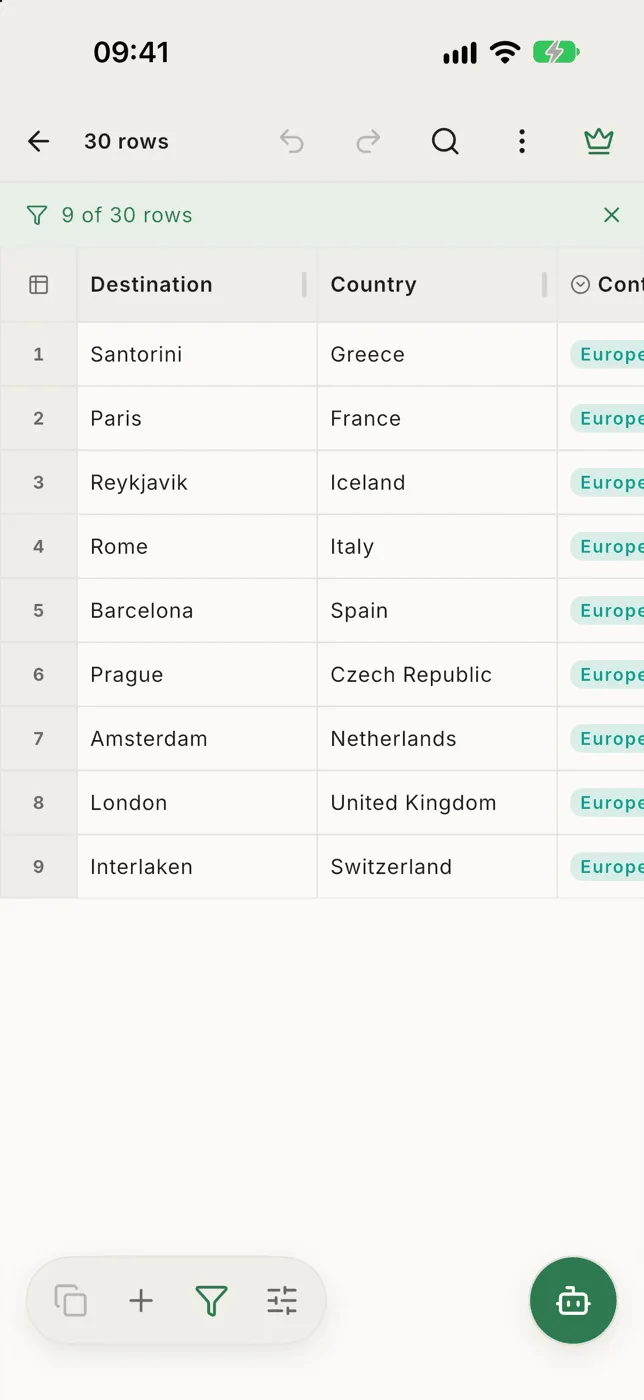
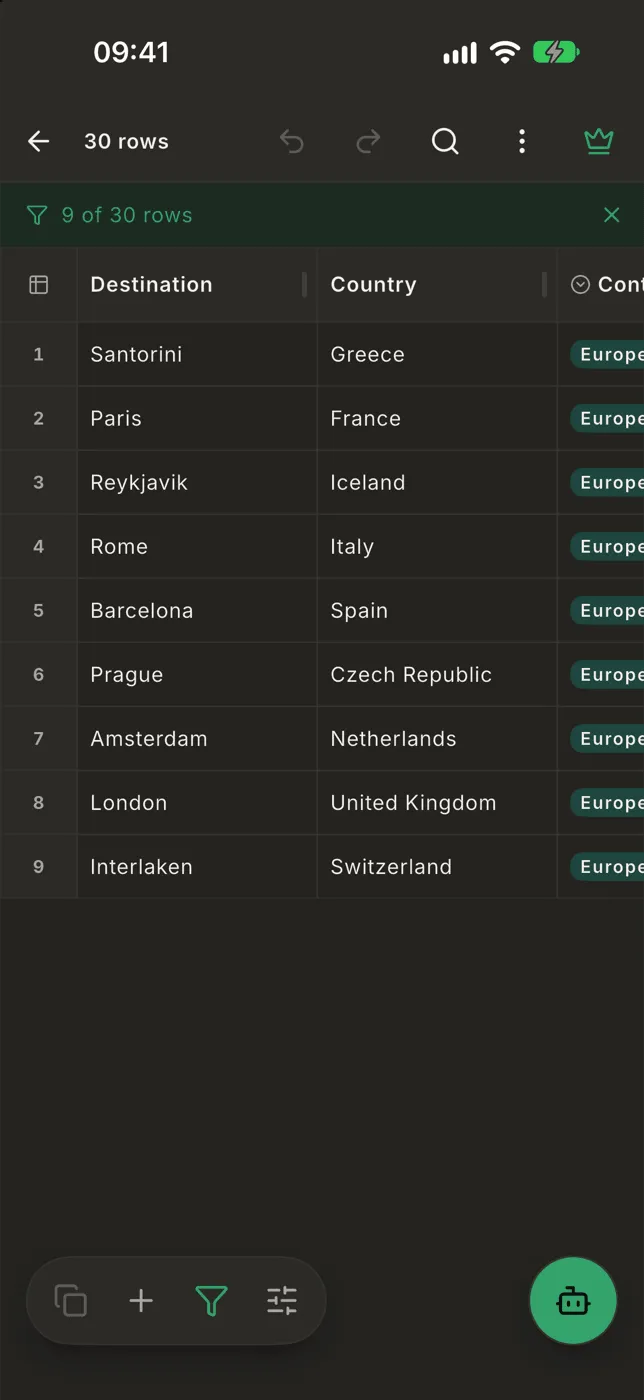
Section titled “While a filter is on”A bar under the top bar says 9 of 30 rows. Tap it to change the filter, or tap ✕ to remove it. The Filter button in the bottom bar stays lit.
Going further
Section titled “Going further”- Edit as SQL turns your conditions into a query you can edit. See SQL query.
- Sort is the other side of the same panel. See Sort.
- Ask in plain words with the AI assistant.