
Export PDF
Export
Section titled “Export”- Optionally select the rows to export. With nothing selected, all rows are exported.
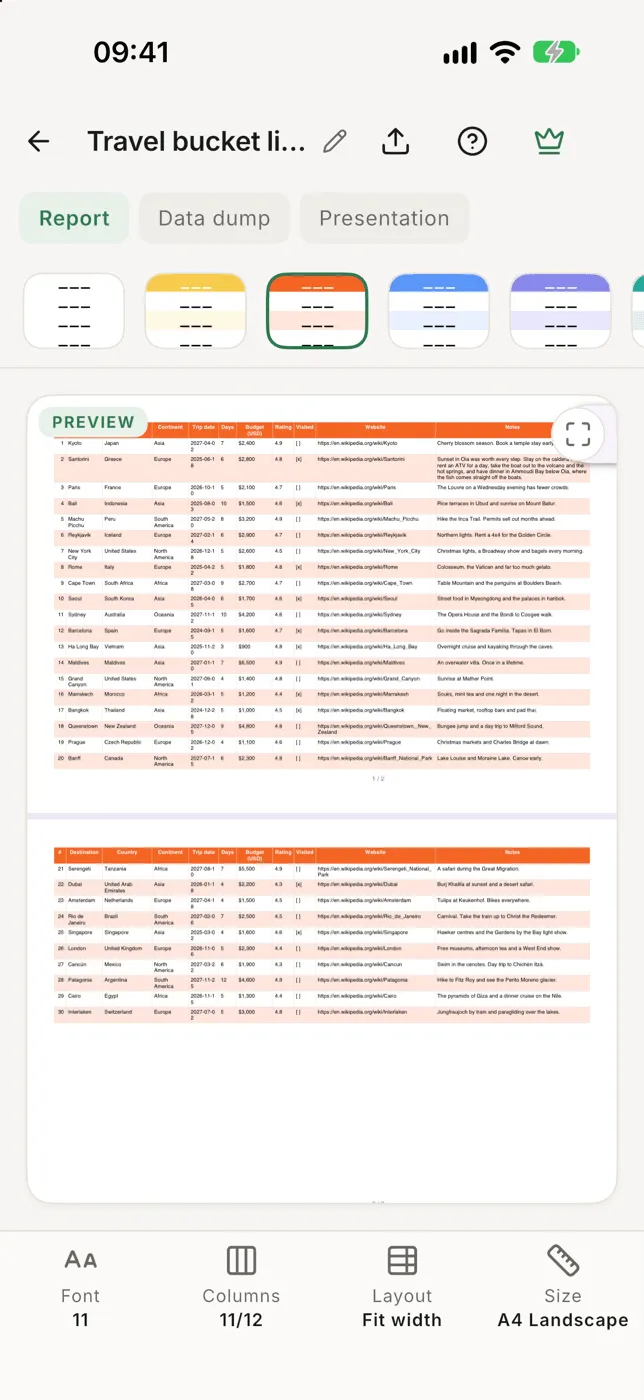
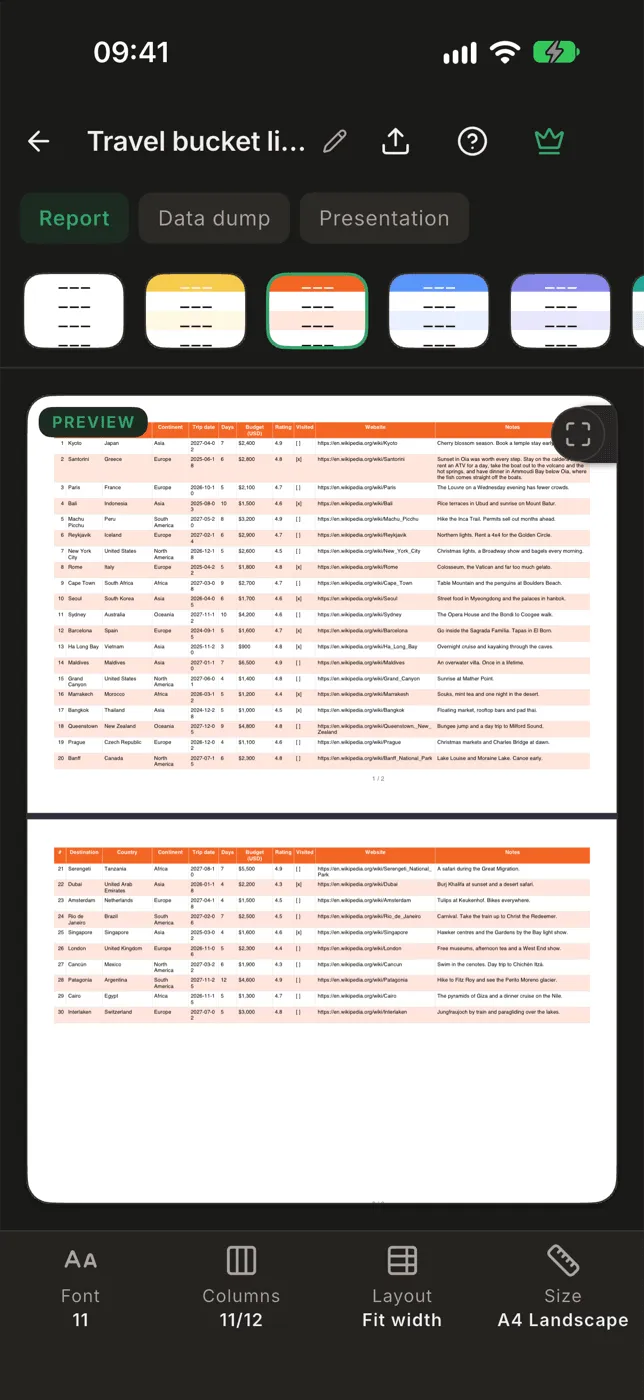
- Tap ⋯ → PDF. A live preview of the pages shows what you’ll get.
- Adjust it (below).
- Tap export (top right). The finished PDF opens for a last look, with Share to send or save it.
Exported PDFs are also listed under Exported files on the home screen.
Presets and styles
Section titled “Presets and styles”- Report, Data dump and Presentation set everything at once. Change anything afterwards and the preset shows · edited.
- The row of styles under them sets the colours of the header and rows. Three of them are your own: tap the pen on one to pick its colours.
The bar at the bottom
Section titled “The bar at the bottom”- Font: size and bold, italic or underline.
- Columns: which columns to print, and in which order.
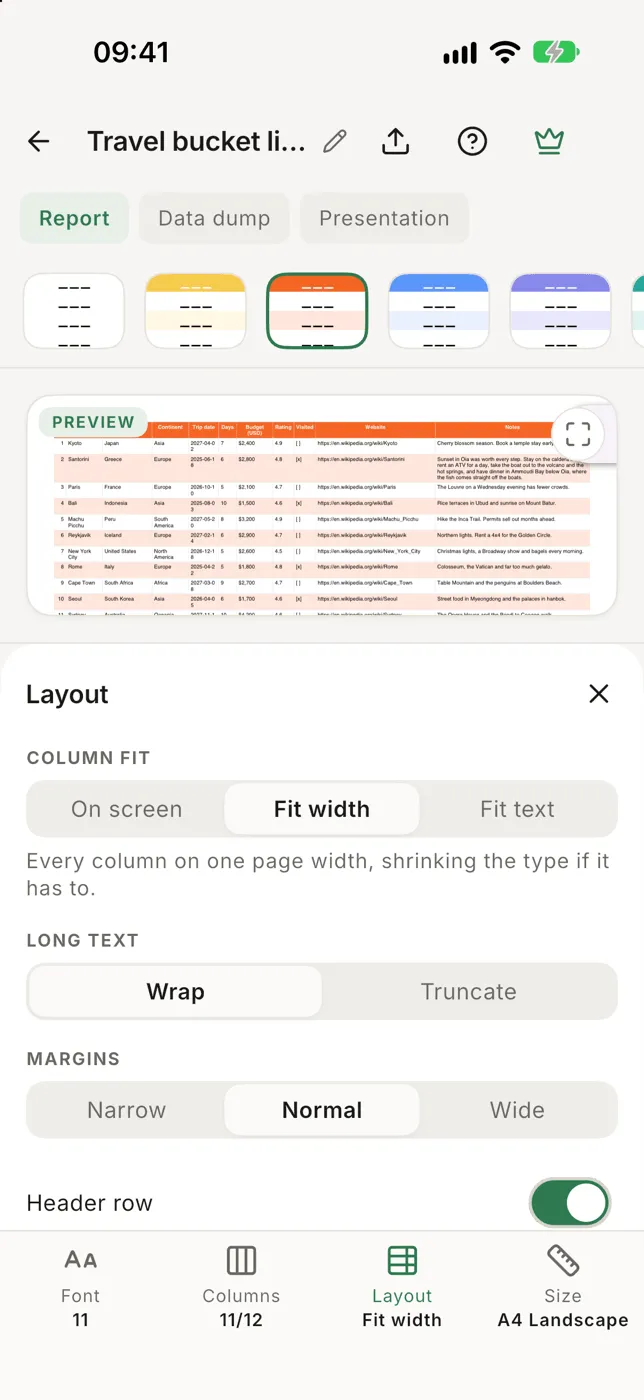
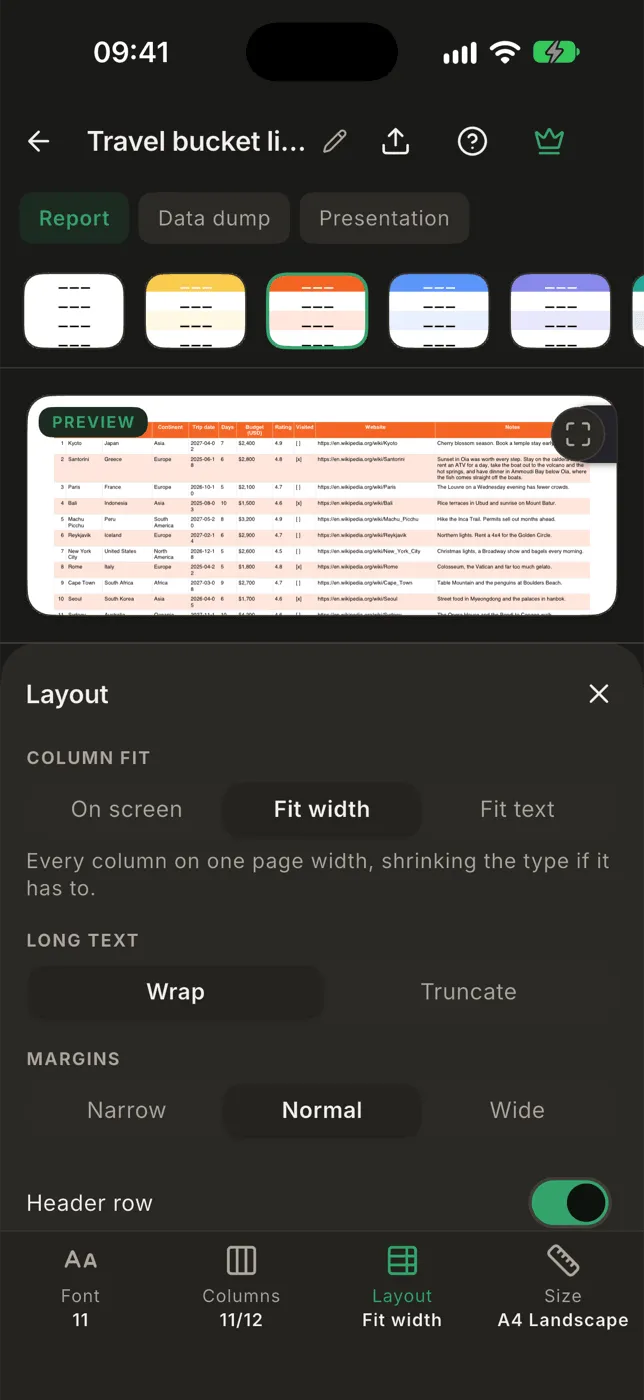
- Layout:
- Column fit: On screen keeps the widths you see in the app, Fit width shrinks everything onto the page width, Fit text sizes columns to their text and continues a wide table on the next page.
- Long text: wrap or truncate.
- Margins: narrow, normal or wide.
- Header row, Repeat header row on every page, Repeated columns (kept on every continuation page so each row can still be identified), Page numbers and Export date in footer.
- Size: paper size and portrait or landscape.
Tap the pencil next to the title to change the title printed at the top.
Column types carry over: numbers print in their display
format, and checkboxes print as [x] and [ ].
Free and Pro
Section titled “Free and Pro”Free exports stop at 1,000 rows and say so in the footer. Pro has no row limit.